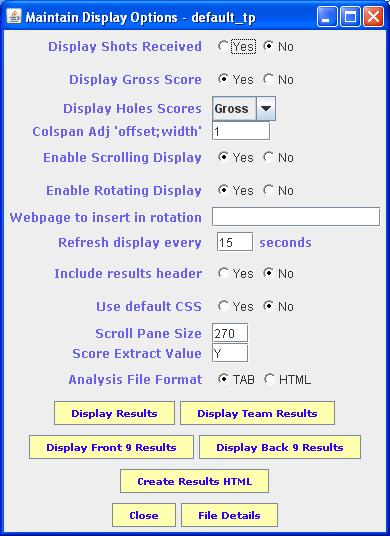
The display parameters maintenance window is shown below
Select Yes you would like the Shots Received to appear in the generated HTML results display
Select Yes if you would like the generated results page to scroll the result details for players 7 onwards. If you select No, a static display page will be generated, but obviously, where a large number of players take part in the competition, it will not be possible to display all the details on the screen at the same time.
A seperate page is generate for each results requirement that the user has specified. These would normally be displayed as seperate pages in the browser. However, if the user selects Yes for this option, the system will change the output so that all the results will be displayed within a single page. The browser will display the first page for as long as specified by the Refresh rate setting. At the end of this period, the page will be refreshed with the next results page and so on cycling through the different results pages. It will start with the Main results and then display the Front, Back and Team results. If any of these have not been selected for creation by the user, they will not be included in the cycled display.
An extension of the above option is the ability for the user to insert a page of their own design into the results pages that the browser will step through. If the user enters the name of a webpage in this field, it will be inserted as the second page to be displayed in the rotation. Note that this webpage MUST be present in the same directory as the other pages generated by the system.
It should be noted that the following line needs to be present in the HEAD section of the user defined web page in order to link to the next page of the rotated display.
<meta http-equiv="refresh" content="nn;URL=xxxx.html">
Where nn indicates the time in seconds to wait before loading the next page and xxxx.html is the name of the next page to display.
The user can configure the results page to refresh itself with the latest details. This is done by entering an integer value in this field that specifies the refresh interval in seconds. So, entering 120 would cause the browser to refresh the display every 120 seconds, i.e. every 2 minutes.
If the user enters 0 for this field, the generated results page will NOT incorporate the refresh feature. If the user still wants to update the browser display with the latest version of the results page, they will need to do this manually. In most cases, this is done by pressing the F5 key.
The user can decide to include the system generated results page title, such as Overall Results, in the web page generated by the system. If they want to include the page title then select Yes for this option. If you select No, then NOTHING will be generated by the system for this area of the web page. This may be done to free up more space on the screen for the actual results display
Cascading Style Sheet (CSS) is a simple mechanism for adding consistent formatting to a web page that also allows the user to change a style which is then applied to the whole document. CSS is used to format the results web pages produced by Golfcomps. A default stylesheet called comp.css is used by the system and is found in the home directory of the Golfcomps system. If the user selects Yes for this option, the default CSS will be used.
In most cases, this default CSS will be used. However, where a user wishes to extensively tailor a page they will almost certainly want to modify the CSS for that page. If the user selects No, the browser will expect to find the CSS item comp.css in the same directory as the results pages generated by the system. This will ensure that the user defined CSS will only be used with the pages generated for that competition and the user will be free to modified the CSS for the results pages to their match the requirements for that page.
The details in the Scroll Pane are displayed in a window of fixed height. The amount of space left in the browser to display this Scroll Pane can vary tremendously. This entry allows the user to specify how large the Scroll Pane should be so that as much information as possible can be displayed in the browser.
The system will create an extract file called Score_Extract.csv that will be saved to the Tab sub-directory of the main directory. For our example competition called default, the path to the file would be C:\golfcomps\Compdata\default\tab\Score_Extract.csv.
This file will contains scores extracted from the competition according to the code entered for this value. If the user enters 3, the extract file will hold details of all the holes on which a player scored 3 or LESS. If the user enters a number followed by a "+", such as 9+, the extract file will hold details of all the holes on which a player scored 9 or MORE.
The extract file is a tab delimitted file containing one line for each hole that matches the extract code requirement. The first value holds the actual score returned by the user. The second value holds the par of the hole. The third value indicates how many shots difference from par this score represents. The fourth value is the hole number, next is the player's name and the final field is the course on which the score was returned.
If the user clicks any of the Results buttons, the Golfcomps system will load the selected results page in the local default browser. Note that if the user has not asked for the Front / Back results to be produced, the system will generate an error message instead of loading the pages.