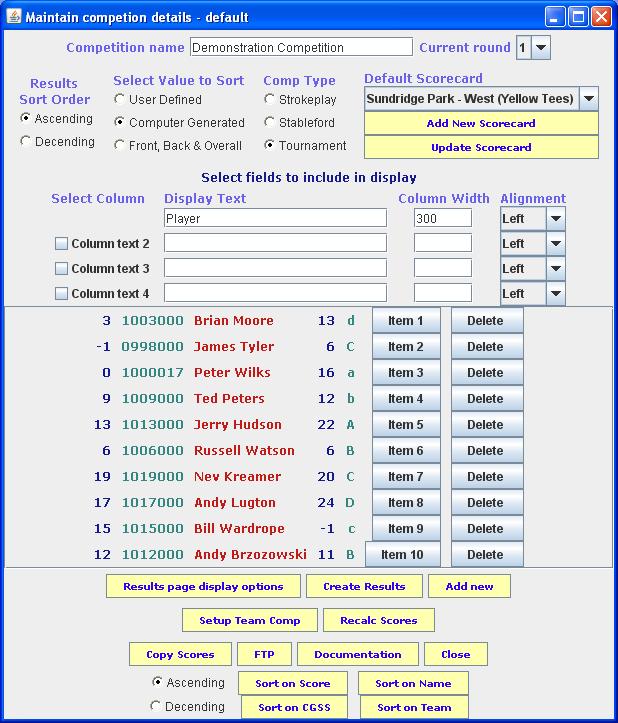
After entering the competition, e.g.default, you will be presented with the following screen that allows you to maintain the competition details.
The screen is broken up into section which are described below
Enter the name of the competition has you would like it to appear in the generated HTML results display
A competition may consist of a number of rounds, normally no more than 4. The system can calculate the aggregate score for a player for all the rounds. The user enters the scores for each player for each round and the system does the rest. This drop down box allows the user to specify the round for which the scores are being entered.
Select ascending if you would like the entries sorted in ascending order, i.e that the lowest value is first and subsequent values become larger. This would normally be suitable for Stroke play competitions. Select decending if to show the highest score. This would normally be suitable for Stableford competitions
Select User Defined if you want to sort the entries using the value entered by the user in the Sort Value field of the score card otherwise select Computer Generated if you want to use the value created by the system.
A third option is Front, Back & Overall. This option will have the system produce 3 sets of results. One using only the scores entered for the front 9, another using the scores for the back 9 and a final set based on all the scores entered. This option will use the computer generated sort string for each set of scores and produce 3 sets of html result pages
Select the appropriate form of competition that you want the computer to calculate points for
Select the course the competition was played on from the drop down box. If the course is not present, click on the Add New Course button. This will take you through to the Course Maintenance window where you can enter the details for a new course.
If you want to change the details for the currently selected course, click on the Update Course button and the system will take you through to the Course Maintenance window where you can modify the details for the selected course
For details of the course maintenance window, click here
The user can define up to 4 columns to be incorporated in the results display. The first column is mandatory. For further columns, check the tick box on the left and enter the column header details on the right.
For each column, the user can specifiy the text to appear at the top of each column. They can also specify a default column width (In pixels). They can also specify the alignment of the text in that column by selecting the appropriate value from the drop down box on the right.
This section displays those entries that have already been entered for the competition. The first column shows the Display Value. This is the value that will be show in the HTML display. The second column shows the Sort Value this is the value by which the entries will be sorted to generate the HTML display. The third column shows the First User Defined Value. The fourth column shows the Team Code that has been assigned to each record.
Against each line are 2 buttons. The first allows the user to modify the details that are associated with that line. When pressed, the system takes the user through to the maintenance screen for that line. Only 1 line can be selected at a time for modification. On return from the window, the display in this window is updated.
Note that the HTML results page is automatically generated each time a user returns from the scorecard maintenance screen
The second button allows the use to remove the details for that line from the competition. Once the DELETE button has been pressed, the record for that entry is removed and the display is refreshed with the relevant details omitted.
There are many aspects of the results presentation screen that the user can adjust. Click on the Results page display options button and the system will take you through to the Display Parameters Maintenance window where you can enter/change various parameters that control the way the results page is presented.
For details of the display parameters maintenance window, click here
If the user clicks on this button, it will refresh the generated results page
If the user clicks the Documentation button, the Golfcomps system will load the documentation index page in the local default browser, where the user can then access information on any part of the system.
If the user clicks on this button, it will take the user through to the scorecard page where they can enter details for a new entry. For details of the score card maintenance window, click here
Please be aware that this golf results system can only currently deal with a maximum of 200 scorecards. If the user tries to add a scorecard in excess of this number, the system will generate an error message and the attempt to add a new record will be ignored.
The user can setup a team competition based on the points calculated by the system for each individual. Clicking on this button will take the user through to the screen that will enable them to setup the competiton.
The system will not allow the user to create a team competition if User Defined has been selected for Select Value to Sort. This is because the system does not have any values with which to generate the team scores. The text on the Setup button will change to show Team Comp not permitted and will not allow access to the team competition maintenance page.
If the user has already entered details for the team competition, the text on the Setup button will display AMEND Team Comp
For details of the team competion maintenance window, click here
|
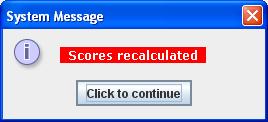
Having eneterd a number of score cards, the user may have realized that they had selected the wrong competition type or may wish to change the current competition type. Unfortunately, the points scored by a player are stored on their scorecard record and so all the scorecards would need to be updated. The user can do this by clicking on this button. Once the button has been clicked, after the competition code has been changed, the scores for each card will be revised and the records amended accordingly. Once this has been done, the message box as shown to the right will appear If the user clicks this button without changing the competition code, it will have no effect on the scores already entered |
 |
If the user clicks on this button, the system will generate 2 files that will be written to the TAB directory within the the appropriate competition directory. These files will summaries the event in 2 ways. The first will have the prefix Player_Summary and will summarise the field of players and will contain the calculated CSS for the competition. The second file, with the prefix Course_Summary will summarise the scores returned on each hole together with the average score for each hole and the percentage variance from the par for the hole.
If the user clicks on this button, it will close the window and terminate the application
Select ascending if you would like the entries displayed in this window in ascending order, i.e that the lowest value is first and subsequent values become larger. Select decending if you want to show the highest value first.
Click on the appropriate button to display the entries shown in this window in the order selected above sorted on the field in the display pane as indicated on the button.
| < Previous | Home | Next > |